I am delighted to share this guest contribution on Thomas’ blog. As a former colleague and fellow Azure enthusiast, I’m excited to dive into MongoDB migration approaches and contribute to the conversation here.
During my recent engagement I was tasked with migrating a 600GB MongoDB instance, which was hosted on MongoDB Atlas, to the new Azure DocumentDB offering. Besides the amount of data, there were two constraints given:
- short downtime of only some hours during migration and
- only private connectivity (Azure Private endpoints) due to security requirements.
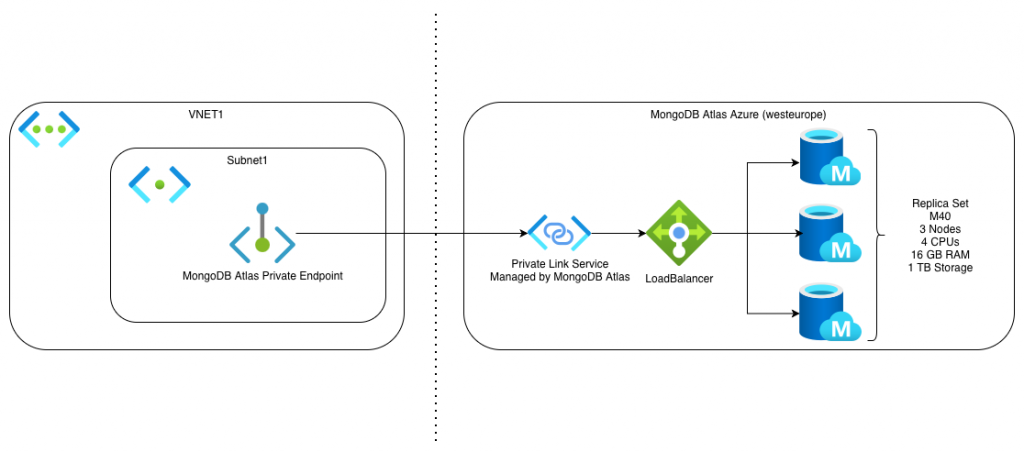
The Atlas MongoDB was hosted on Azure and was available in our subscription with an Azure Private Endpoint connected to a Private Link Service managed by MongoDB Atlas. This way it was possible to make the MongoDB only available within the Azure VNET and restrict public access via public internet.
Options for migrating MongoDB to DocumentDB
For migrating that amount of data, I evaluated three approaches. The first two did not fit my requirements, which made me choose the last option shown. Depending on your requirements this might be a different decision.
Azure Database Migration Service (Fail)
With the Azure Database Migration Service, it is possible to… well, as the name suggests: migrate databases. The service looked very promising. Besides SQL Server, MySQL and PostgreSQL, also MongoDB is supported for migration. The service is set up rather easily. After you set up and started the service, you can create migration projects. These can be Offline or Online migrations (with change data tracking). I was able to connect to the Atlas MongoDB cluster with the DMS.
Unfortunately, it was not possible to connect to my target DocumentDB. First, Azure DocumentDB is not a valid target type – but Cosmos DB is. With this major confusion about naming for CosmosDB/DocumentDB and actual engine confusion I thought – well CosmosDB for MongoDB is close enough to the new and more compatible DocumentDB. It was not.
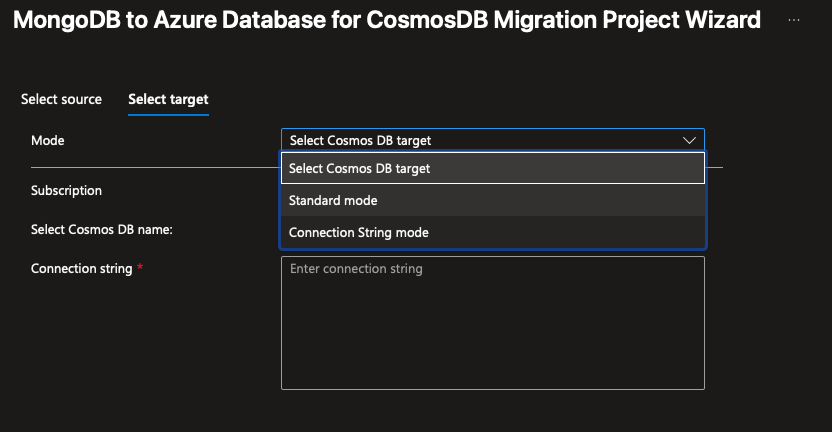
With the „Connection String mode“, I was nearly able to connect to my target DocumentDB. The connection seemed to be established, but I got the following error in the Azure portal:
{
   "resourceId":"/subscriptions/271ebf37-dcdc-dsds-fsds-fsdfsdfsdf/resourceGroups/dsdsdsds-test/providers/Microsoft.DataMigration/services/DMS-sdsdsdsd",
   "errorType":"Failed to connect, please check error details",
   "errorDetail":"A scenario reported an unknown error. Command serverStatus failed: Command serverStatus not supported."
}
To me, this looks like a compatibility issue and that Azure DocumentDB is not yet supported as of now (02/28/26). In the supported scenarios of Azure Database Migration Service only CosmosDB is mentioned as a supported target as well.
VS Code Extension: Azure DocumentDB Migration (also kind of fail)
This VS Code extension is offered by Microsoft and is also mentioned as a way of migrating to DocumentDB in the official documentation. The way it works is that you create a connection to your source database in the extension and then start a migration project. The extension offers online and offline migration with private or public connectivity. For the actual migration it deploys an Azure Database Migration Service resource in your subscription and tries to connect to your databases via Private Endpoints.
Unfortunately, I did not get this extension to work, simply because this extension, as well as the official MongoDB extension were not able to resolve the SRV record of the connection strings provided (mongodb+srv://<username>:<password>@FQDN). The exact same connection strings did work in MongoDB Compass and mongosh (2.7.0). I also could resolve the SRV records with ’nslookup‘ as well as with a simple node script. And I still have no clue why it does not work within VS Code. A workaround with an Azure Bastion tunnel was tried but then I had to connect my target database as localhost (without the SRV record), which did not resolve on the Azure Database Migration Service, obviously. Also using the resolved SRV return address as the FQDN in the target connection string did not work, because the extension expects the connection string to contain the actual DocumentDB name – which would force me to connect to the database via public internet. Which left me with the last option for a migration.
Migration with the Mongo Migration Web Based Utility
Microsoft is offering the MongoMigrationWebBasedUtility as an open-source solution and this one finally worked for me – with some caveats. This solution is offering a complete web solution for migrating MongoDB to DocumentDB in Azure with compute power hosted as an Azure Container App or Azure Web App. Additionally, you get a Python script, which migrates the database schema.
The web app is providing a simple UI, where you can configure online and offline migrations as well as different migration tools (MongoDump&MongoRestore or MongoDB Driver) as well as controlling the number of worker threads for parallel processing.
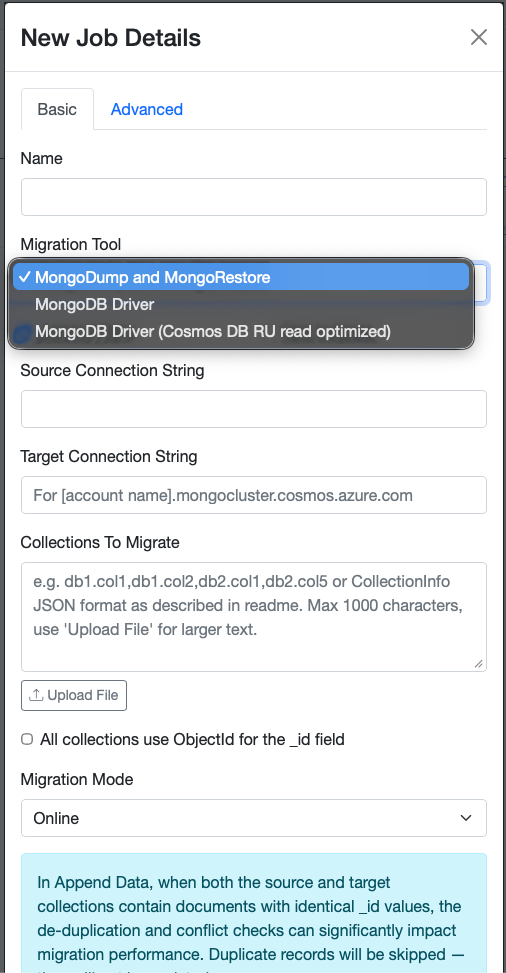
For a production ready migration with VNET integration, Microsoft is recommending deploying the migration web tool as an Azure Container App (ACA). This is, what I chose for our migration as well. In the following section I will describe the migration architecture as well as how to setup the tool in more detail.
Migration Architecture
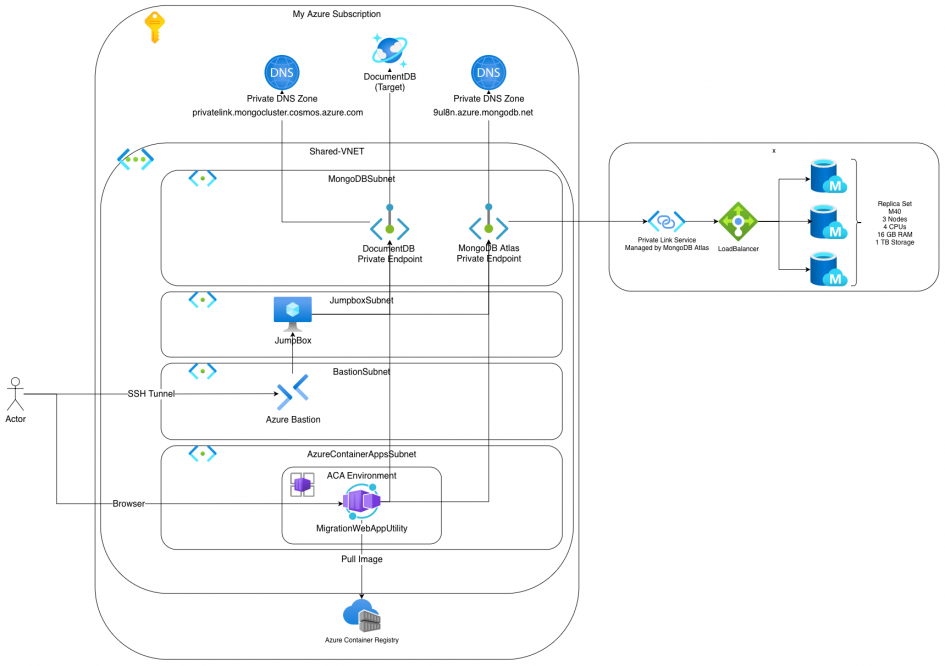
Because of the security requirement of using only private connectivity, I had to jump through some hoops to get the setup right. Especially DNS was annoying here. The following illustration shows my setup in detail.
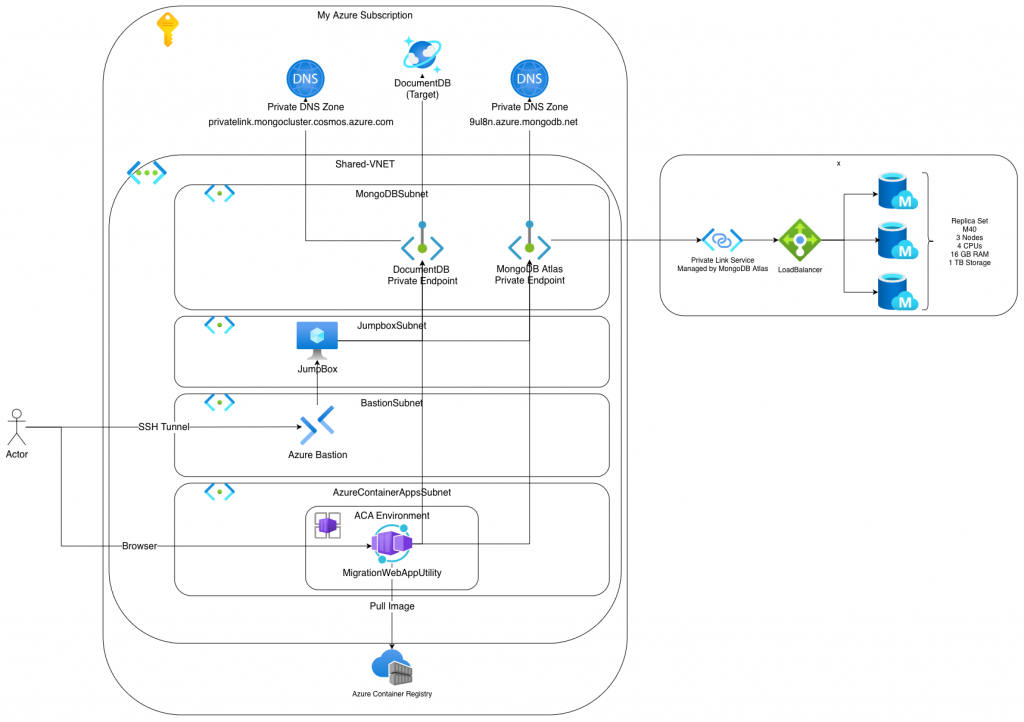
The migration tool is deployed as an ACA which is available via the internet. As it is password protected, I did not bother too much also separating it from public internet. The Azure Bastion and the JumpBox are needed to setup an Azure Bastion tunnel to the databases via their endpoints as well as having a resource within the VNET, that is able to resolve DNS records. Both databases have their Private DNS Zone, where the needed records are stored.
Setting up a tunnel to MongoDB Atlas and Azure DocumentDB
This section will be DNS heavy….
Setting up a SSH tunnel to your JumpBox via Azure Bastion is normally quite trivial. You simply map a local port to a port on the remote VM via this AZ CLI command. This forwards connections to your local port 2222 to port 22 on your remote jump box VM. But the actual connection from your local machine is initiated via outbound port 443 via web sockets to the Azure Bastion service. This makes this setup enterprise firewall friendly. „Normal“ outbound SSH sessions tend to be problematic in enterprise setups.
az network bastion tunnel \
  --name bas-xxx-stg-01 \
  --resource-group rg-xxx-stg-01 \
  --target-resource-id /subscriptions/55555555-bbbb-bbbb-bbbb-555555555555/resourceGroups/RG-XXX-STG-01/providers/Microsoft.Compute/virtualMachines/VM-XXX-JUMPHOST-STG-01 \
  --resource-port 22 \
  --port 2222
The next step would be setting up a nested tunnel via ssh -L to tunnel a local port to a remote resource on a target port. Normally, you would use something like this to tunnel to a target DocumentDB via ssh over Azure Bastion (WARNING, this is not working!).
ssh -L 27017:cosmos-xxxx-mongo-stg-01.global.mongocluster.cosmos.azure.com:27017 \
  azureuser@localhost -p 2222
This command is starting an SSH session to your localhost on port 2222 with user azureuser. This connection is forwarded to your Azure JumpBox via the Bastion tunnel we setup before. Additionally it sets up a nested tunnel, which forwards all traffic to your local port 27017 to a remote address (cosmos-xxxx-mongo-stg-01.global.mongocluster.cosmos.azure.com) on port 27017. But this will not work, because the FQDN will not be resolved by your remote Jumpbox. To build up a tunnel, we need to run the ssh command like this. The first -L is the tunnel to DocumentDB, the second to MongoDB.
ssh -L 10260:fc-d55c5d5d55a5-000.global.mongocluster.cosmos.azure.com:10260 \
  -L 27017:db-xxxx-dev-pl-1.9ag33.azure.mongodb.net:1024 \
  azureuser@localhost -p 2222
To understand why, we need to take a look at how MongoDB or DocumentDB clusters are working.
How MongoDB/DocumentDB clusters work and how they work with DNS
MongoDB Atlas as well as DocumentDB is mostly setup in clusters consisting of multiple nodes. When connecting to your DocumentDB cluster, Azure is giving you a connection string, that looks like this: mongodb+srv://mongoadmin:@cosmos-xxxx-mongo-stg-01.global.mongocluster.cosmos.azure.com/?tls=true&authMechanism=SCRAM-SHA-256&retrywrites=false&maxIdleTimeMS=120000.
In the protocol you can see mongodb+srv. This srv is indicating the database client to first look up the SRV record before connecting to the actual database with the MongoDB protocol. These SRV records are a special type of DNS records that return a list of possible target records together with a target port as well as optionally a weight for traffic distribution. Resolving a SRV record for DocumentDB and MongoDB Atlas on your Azure JumpBox interestingly look quite different.
azureuser@vm-xxxx-jumphost-stg-01:~$ nslookup -type=SRV _mongodb._tcp.cosmos-xxxx-mongo-stg-01.global.mongocluster.cosmos.azure.com

Server:		127.0.0.53
Address:	127.0.0.53#53

Non-authoritative answer:
_mongodb._tcp.cosmos-xxxx-mongo-stg-01.global.mongocluster.cosmos.azure.com	service = 0 0 10260 fc-d55c5d5d55a5-000.global.mongocluster.cosmos.azure.com.


azureuser@vm-xxxx-jumphost-stg-01:~$ nslookup -type=SRV _mongodb._tcp.db-xxxx-dev-pl-1.9ag33.azure.mongodb.net
Server:		127.0.0.53
Address:	127.0.0.53#53

Non-authoritative answer:
_mongodb._tcp.db-xxxx-dev-pl-1.9ag33.azure.mongodb.net	service = 0 0 1025 db-xxxx-dev-pl-1.9ag33.azure.mongodb.net.
_mongodb._tcp.db-xxxx-dev-pl-1.9ag33.azure.mongodb.net	service = 0 0 1026 db-xxxx-dev-pl-1.9ag33.azure.mongodb.net.
_mongodb._tcp.db-xxxx-dev-pl-1.9ag33.azure.mongodb.net	service = 0 0 1024 db-xxxx-dev-pl-1.9ag33.azure.mongodb.net.

Authoritative answers can be found from:
db-xxxx-dev-pl-1.9ag33.azure.mongodb.net	internet address = 10.10.4.5
The Azure DocumentDB actually resolves to fc-d55c5d5d55a5-000.global.mongocluster.cosmos.azure.com on port 10260. The Atlas MongoDB actually resolves to the same FQDN as the SRV record but with three potential ports: 1024, 1025 and 1026. Behind the returned records, there are then actual IPs.
azureuser@vm-xxxx-jumphost-stg-01:~$ nslookup fc-aaaaaaaaaaaa-000.mongocluster.cosmos.azure.com
Server:		127.0.0.53
Address:	127.0.0.53#53

Non-authoritative answer:
fc-aaaaaaaaaaaa-000.mongocluster.cosmos.azure.com	canonical name = fc-aaaaaaaaaaaa-000.privatelink.mongocluster.cosmos.azure.com.
Name:	fc-aaaaaaaaaaaa-000.privatelink.mongocluster.cosmos.azure.com
Address: 10.10.4.4

azureuser@vm-xxxx-jumphost-stg-01:~$ nslookup fc-aaaaaaaaaaaa-000.global.mongocluster.cosmos.azure.com
Server:		127.0.0.53
Address:	127.0.0.53#53

Non-authoritative answer:
fc-aaaaaaaaaaaa-000.global.mongocluster.cosmos.azure.com	canonical name = fc-aaaaaaaaaaaa-000.global.privatelink.mongocluster.cosmos.azure.com.
Name:	fc-aaaaaaaaaaaa-000.global.privatelink.mongocluster.cosmos.azure.com
Address: 10.10.4.4

azureuser@vm-xxxx-jumphost-stg-01:~$ nslookup db-xxxx-dev-pl-1.9ag33.azure.mongodb.net
Server:		127.0.0.53
Address:	127.0.0.53#53

Non-authoritative answer:
Name:	db-xxxx-dev-pl-1.9ag33.azure.mongodb.net
Address: 10.10.4.5
Because I did not want to setup some kind of DNS server on my Azure JumpBox, I used the records returned by the SRV record resolution to build up the SSH tunnel. With that tunnel in place, I was able to setup connections to both databases.
Connecting from local machine to remote databases via SSH tunnel
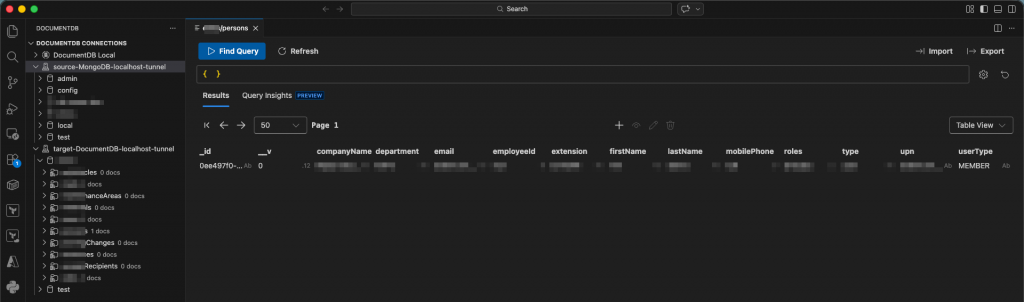
With the SSH tunnel set up, I can now configure connections to the databases e.g. in VS Code DocumentDB extension via connection string method.
Setup database connections
DocumentDB connection string:
mongodb://mongoadmin:<URL-encoded-password>@localhost:10260/?tls=true&authMechanism=SCRAM-SHA-256&retrywrites=false&maxIdleTimeMS=120000&tlsAllowInvalidHostnames=true

MongoDB connection string:
mongodb://xxx-xxx-user:<URL-encoded-password>@localhost:27017/?tls=true&authSource=admin&directConnection=true&tlsAllowInvalidHostnames=true
As you can see, the protocol is now only mongodb and not mongodb+srv anymore. Also the password needs to be URL encoded when it is containing special characters. Finally, there are a lot of parameters on the connection strings. I added the tlsAllowInvalidHostnames=true parameter because I anticipated issues with TLS certificate validation when connecting to localhost instead of the actual hostname the server certificate is issued for. For MongoDB Atlas database I also had to add directConnection=true to indicate that I need to connect one specific node. If that flag is not added, the connection cannot be established. Finally, the connection is established to localhost on the ports I forwarded to the remote databases with the SSH tunnel.
Schema migration with the MongoMigration Tool
As part of the MongoMigrationWebBasedUtility there comes a python script, that supports you with migrating your database schema first. This tool is the reason for all the tunneling fuss. How to do the schema migration with that tool is explained here in detail. You basically run the script and pass it a config file, your source connection string (tunneled via SSH) and your target connection string (also tunneled over SSH) and let it do its magic. The config file is a simple JSON file, that describes which collections schemas should be migrated and which not. Some example configs can be found here.
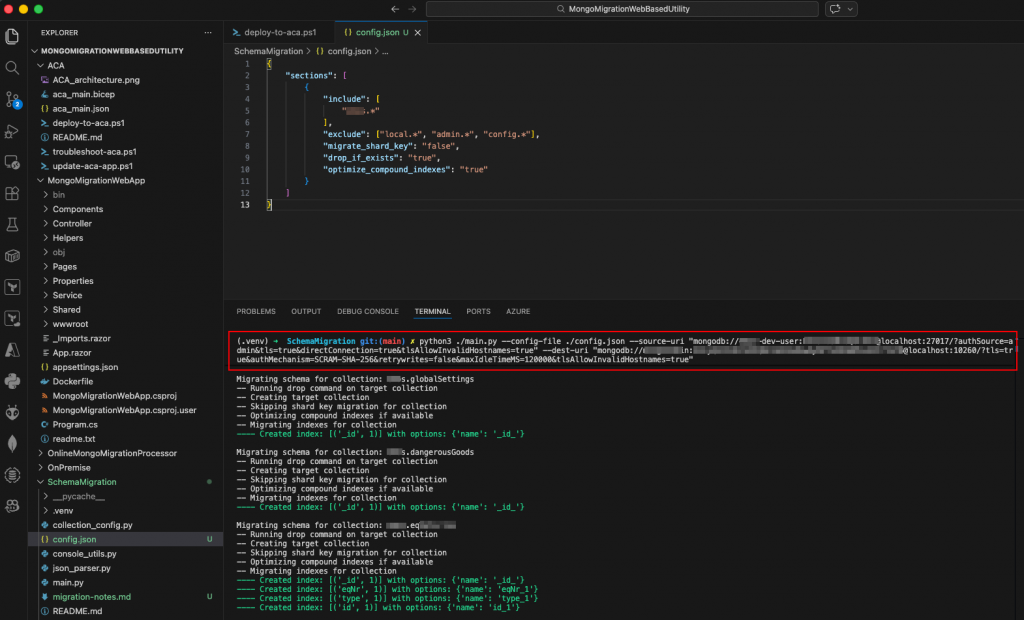
python3 ./main.py --config-file ./config.json --source-uri "mongodb://xxxx-dev-user:<encodedPassword>@localhost:27017/?authSource=admin&tls=true&directConnection=true&tlsAllowInvalidHostnames=true" --dest-uri "mongodb://<adminuser>:<encodedPassword>@localhost:10260/?tls=true&authMechanism=SCRAM-SHA-256&retrywrites=false&maxIdleTimeMS=120000&tlsAllowInvalidHostnames=true"In the log output of the script you can clearly see, which indexes were found and migrated. Please be aware, that the optimize_compound_indexes option might lead to some indexes not being migrated. In case you use that option, triple check the successful migration of all relevant indexes. Also keep in mind that the script will delete existing collections in a target database if you have drop_if_exists option set to true.
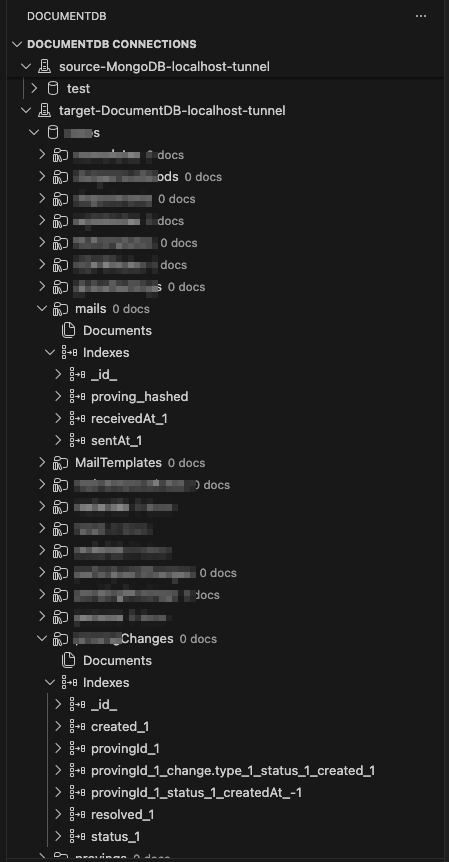
After the migration the target DocumentDB looks more like shown in the next illustration. You can clearly see the collections and indexes be migrated.
Setting up the MongoMigrationWebBasedUtility as an Azure Container App
In this step we will set up the infrastructure for the migration tool and directly deploy it as well. You can find a detailed explanation here. Given you already cloned the repository to run the Python script for schema migration, you can deploy the migration web tool simply by a PowerShell script. These are the needed prerequisites for running the tool with my added hints:
- Azure CLI installed and logged in (
az login) - An Azure subscription with appropriate permissions (Contributor plus able to do some IAM stuff – e.g. User Administrator)
- Resource group created (
az group create -n <rg-name> -l <location>)- put your ephemeral resources in one group, so they can be deleted easily after migration
- Azure DocumentDB account created for state storage (you’ll need the connection string)
- the script will ask for the connection string to a DocumentDB instance, where it can store metadata and progress data – you could simply take your target database here as well
- Supported Azure region – Container Apps with dedicated workload profiles are not available in all regions
- supported in most major regions
- Additionally, I needed several resource providers enabled on the subscription (which is not mentioned in the documentation, yet):
Microsoft.AppMicrosoft.ContainerRegistry
- Also, I needed an empty, dedicated subnet for the Azure Container App Environment which was in the same VNET as the subnet for the Private Endpoints (for simplicity) and which is delegated to
Microsoft.App/environment
After all is set up, I can finally deploy the migration web tool by running the following command in the project folder. Some hints for the parameters:
-ResouceGroupName– Name of the Resource Group created for the ephemeral resources-InfrastructureSubnetResourceId– ResourceID of the subnet dedicated for the Azure Container App Environment-AcrName– must be globally unique!-StorageAccountName– must be globally unique!-ImageTag– change it when you need to rebuild the container image (e.g. „v1“, „v2“, …)-VCores– lets you define the number of CPUs (default: 8). Please be aware that this cannot be changed easily afterwards, because the web tool attaches the number of CPUs as part of the ACA environment name (D4, D8, D16, D32) which would add another ACA environment which in turn expects an empty subnet.- When passing the StateStore connection string (step 3), please keep in mind URL encoding your secret! (This took me several hours to figure out…)
./ACA/deploy-to-aca.ps1 -ResourceGroupName "rg-xxxx-db-migration" \
  -ContainerAppName "mongomigration" \
  -Location "westeurope" \
  -OwnerTag "sebastian.stephan@xxxxxxx.com" \
  -InfrastructureSubnetResourceId "/subscriptions/55555555-5555-45555-5555-5555555555555/resourceGroups/rg-xxxx-stg-01/providers/Microsoft.Network/virtualNetworks/vnet-xxxx-shared-stg-01/subnets/snet-xxxx-dbmigration-stg-01" \
  -AcrName "mongomigrationacr37247" \
  -AcrRepository "mymigrationapp" \
  -StorageAccountName "mongomigstg331" \
  -StateStoreAppID "aca_server1" \
  -ImageTag "latest" \
  -VCores 4 \
  -MemoryGB 16

Step 1: Deploying infrastructure (ACR, Storage Account, Managed Identity, Container Apps Environment)...
Note: This may take 3-5 minutes...
VNet integration enabled with subnet: /subscriptions/55555555-5555-45555-5555-5555555555555/resourceGroups/rg-xxxx-stg-01/providers/Microsoft.Network/virtualNetworks/vnet-xxxx-shared-stg-01/subnets/snet-xxxx-dbmigration-stg-01
Running: az deployment group create...
 | Running ..
.....
.....
Infrastructure deployment completed successfully


Step 2: Checking if Docker image exists in ACR...
Image 'mymigrationapp:latest' not found in ACR. Building and pushing...
Note: Warnings about packing source code and excluding .git files are normal and expected.
Packing source code into tar to upload...
Excluding '.gitignore' based on default ignore rules
Excluding '.git' based on default ignore rules
Uploading archived source code from '/var/folders/q7/5ws3krqj4yd0_sy8dmnfkw_80000gn/T/build_archive_c49236b8dfb04e9c9d55070dd6bd1eb7.tar.gz'...
Sending context (7.125 MiB) to registry: mongomigrationacr37247...
Queued a build with ID: cb1
Waiting for an agent...
2026/02/26 14:15:16 Downloading source code...
2026/02/26 14:15:17 Finished downloading source code
2026/02/26 14:15:18 Using acb_vol_501eb09e-f2d4-4cb5-a5fe-9f5538d3c198 as the home volume
2026/02/26 14:15:18 Setting up Docker configuration...
2026/02/26 14:15:18 Successfully set up Docker configuration
2026/02/26 14:15:18 Logging in to registry: mongomigrationacr37247.azurecr.io
2026/02/26 14:15:19 Successfully logged into mongomigrationacr37247.azurecr.io
2026/02/26 14:15:19 Executing step ID: build. Timeout(sec): 28800, Working directory: '', Network: ''
2026/02/26 14:15:19 Scanning for dependencies...
2026/02/26 14:15:20 Successfully scanned dependencies
2026/02/26 14:15:20 Launching container with name: build
Sending build context to Docker daemon  21.96MB
Step 1/26 : FROM mcr.microsoft.com/dotnet/aspnet:9.0 AS base
9.0: Pulling from dotnet/aspnet
84a2afebaf4d: Pulling fs layer
6ff1bffe3b0c: Pulling fs layer
....
....
Run ID: cb1 was successful after 1m58s
Docker image built and pushed successfully.


Step 3: Prompting for StateStore connection string...
The StateStore keeps track of migration job details in a DocumentDB. You may use the same database as the Target DocumentDB or a separate one. Enter the connection string for the StateStore.:***************************************************************************************************************************************************************************************************


Step 4: Deploying Container App with application image...
....
....
=== Deployment Complete ===

Cleaning up old revisions...
Latest revision: mongomigration--0000001
  Deactivating old revision: mongomigration--jinwd26
Old revisions deactivated successfully

Step 5: Verifying new image deployment...
Expected replica count: 1 (minReplicas: 1, maxReplicas: 1)

Waiting for container to become active and healthy...
Checking deployment status (attempt 1/60)...
  Running State: Activating | Provisioning: Provisioned | Health: None | Replicas: 1
  Current Image: mongomigrationacr37247.azurecr.io/mymigrationapp:latest
  Waiting for container to reach healthy state...
  Checking again in 10 seconds...
Checking deployment status (attempt 2/60)...
  Running State: Activating | Provisioning: Provisioned | Health: None | Replicas: 1
  Current Image: mongomigrationacr37247.azurecr.io/mymigrationapp:latest
  Waiting for container to reach healthy state...
  Checking again in 10 seconds...
Checking deployment status (attempt 3/60)...
  Running State: Activating | Provisioning: Provisioned | Health: None | Replicas: 1
  Current Image: mongomigrationacr37247.azurecr.io/mymigrationapp:latest
  Waiting for container to reach healthy state...
  Checking again in 10 seconds...
Checking deployment status (attempt 4/60)...
  Running State: Activating | Provisioning: Provisioned | Health: None | Replicas: 1
  Current Image: mongomigrationacr37247.azurecr.io/mymigrationapp:latest
  Waiting for container to reach healthy state...
  Checking again in 10 seconds...
Checking deployment status (attempt 5/60)...
  Running State: RunningAtMaxScale | Provisioning: Provisioned | Health: Healthy | Replicas: 1
  Current Image: mongomigrationacr37247.azurecr.io/mymigrationapp:latest

Container is fully active and healthy!
  Running state: RunningAtMaxScale
  Provisioning state: Provisioned
  Health state: Healthy
  Active replicas: 1 (expected: 1)
  Image verified: mongomigrationacr37247.azurecr.io/mymigrationapp:latest

Retrieving application URL...

==========================================
  Application deployed successfully!
==========================================
  Launch URL: https://mongomigration.xxxxxxxxxx-xxxxxxxxx.westeurope.azurecontainerapps.io
==========================================
When you open the URL in your Browser you are asked to specify a password for the web page. After this password is defined and you log in with it, you can now define your data migration by clicking the New Job button.
Configuring and executing the data migration
Click on New Job and enter your details and configuration for the migration. As Source connection String and Target Connection String use the normal mongo+srv:// connection strings and remember to URL encode the password. For the databases and collection to migrate specify them using e.g. wildcards. With deactivation of Append Data you overwrite all data. You can skip the indexes as you already migrated them with the Python tool. At the bottom you have to agree that you understood all data will be deleted.
Encoded ConnectionString for Data Migration (Source):
mongodb+srv://xxxx-dev-user:xxxxxxxxxxxxx@db-xxxx-dev-pl-1.xaxaxa.azure.mongodb.net/?tls=true&authSource=admin

Encoded ConnectionString for Data Migration (Target):
mongodb+srv://mongoadmin:%3Cxxxxxxxxxxxxxxxxxxxxxx%7B@cosmos-xxxx-mongo-stg-01.global.mongocluster.cosmos.azure.com/?tls=true&authMechanism=SCRAM-SHA-256&retrywrites=false&maxIdleTimeMS=120000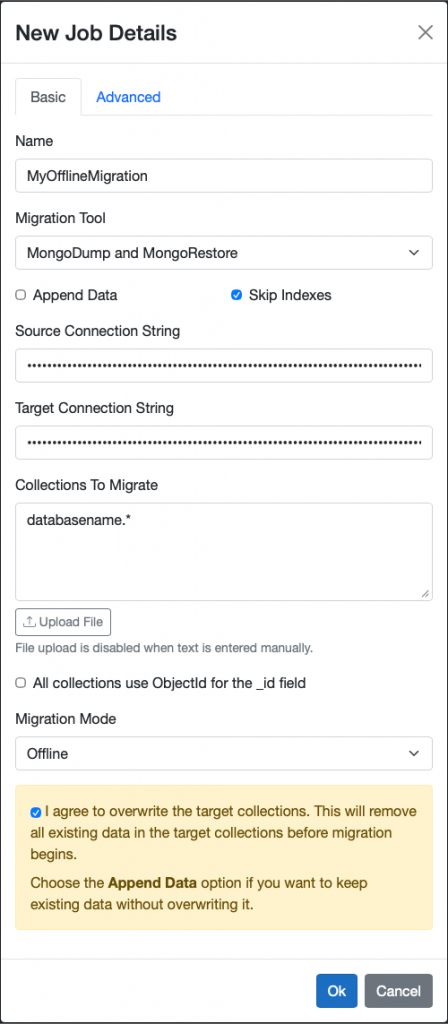
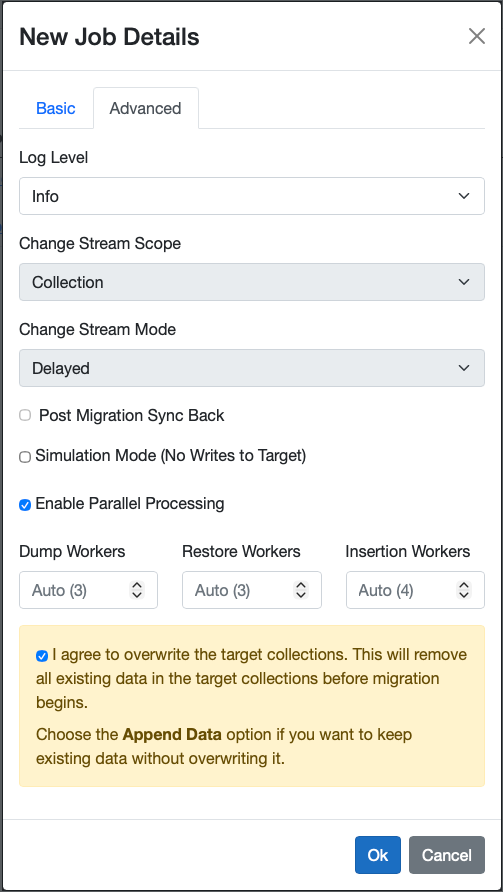
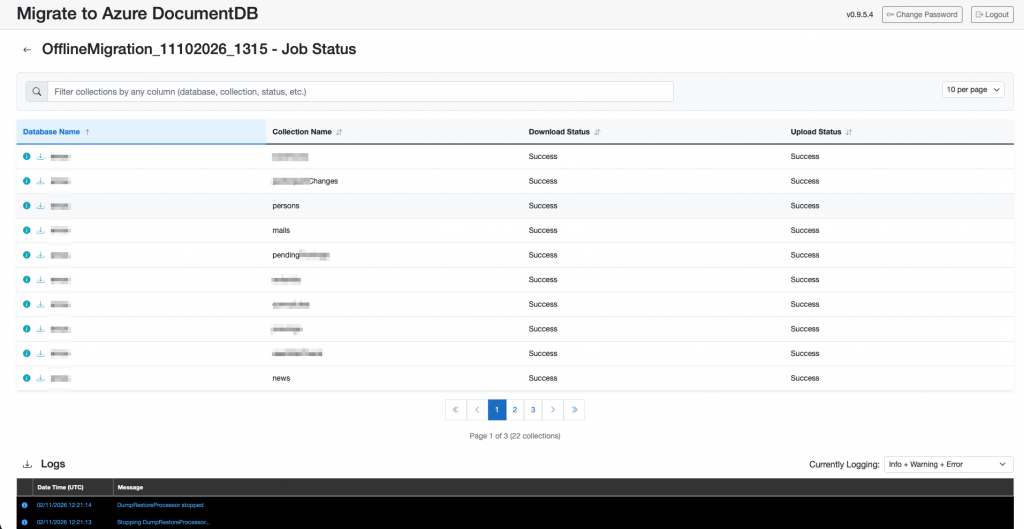
After the migration executed you can see that the data was successfully transferred. Depending on your performance requirements you can dynamically scale up and down the number of dump, restore and insert workers.

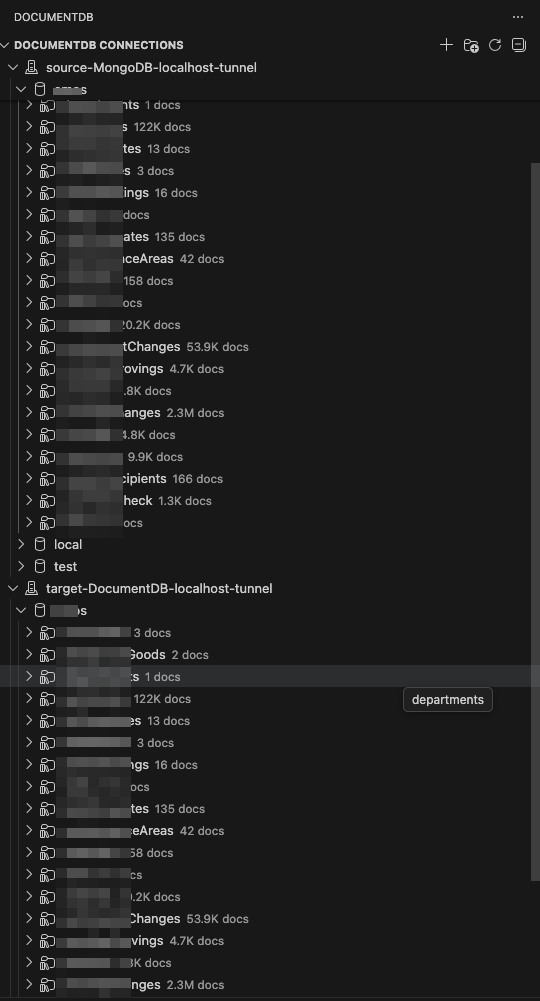
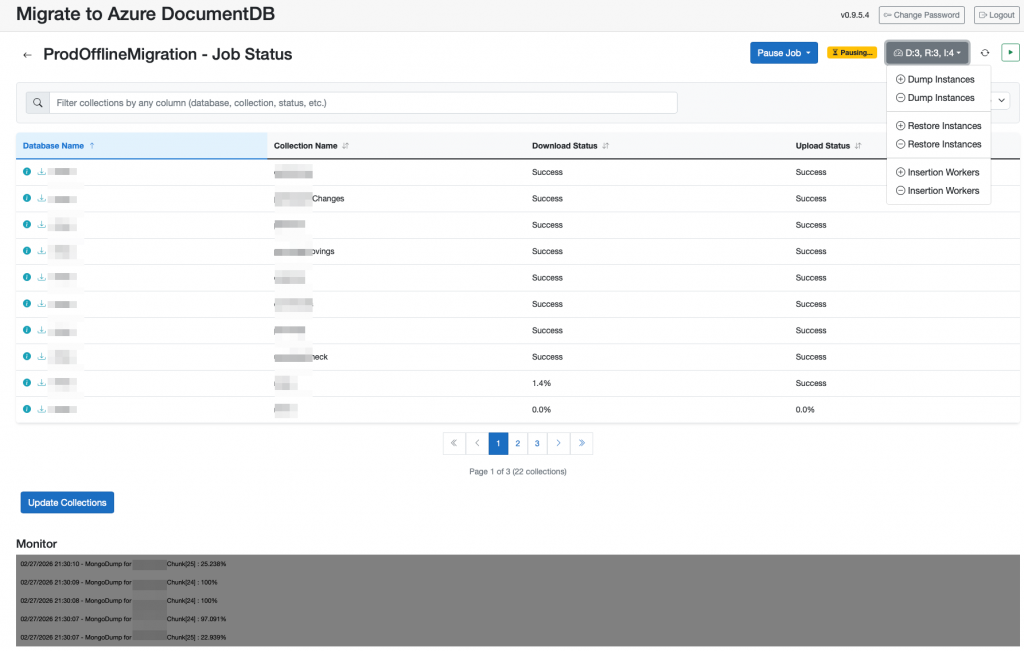
Alternatively you can also configure an Online migration, where data is migrated initially and all the following changes are tracked and transferred gradually until you trigger a final migration and finish the job.
After you finished the migration, you can look at your migration report and double check how long the migration took and if all collections and documents were successfully transferred.
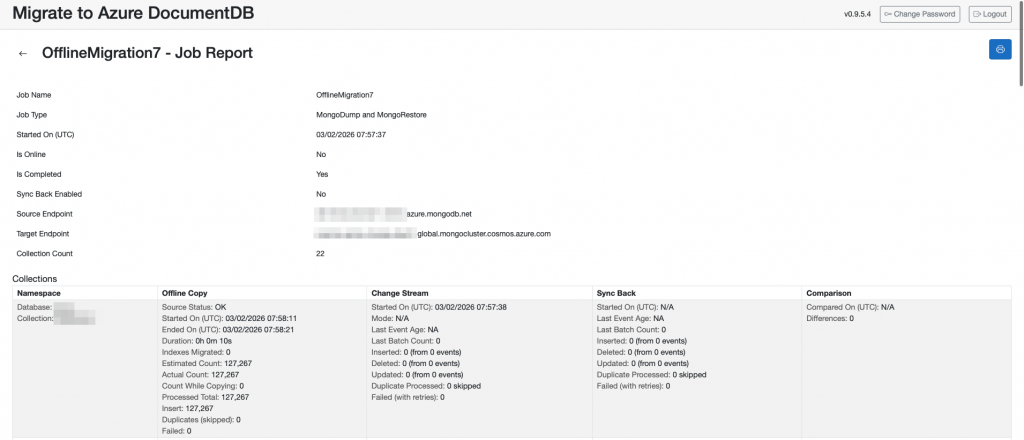
Watch out and double check for collections, that might have had issues like failed or duplicate entries. Duplicates might happen if there was an issue during the migration (storage full or connection issues) because the tool is retrying an insert after it failed once. Some documents from one chunk might already be inserted until the error happens and with the retry a lot of duplicates would be inserted in the DocumentDB.

Finally you can delete the resource group for the migration web app and your Atlas MongoDB. This also deletes the auto-created resource group for the Azure Container App.
az group delete --name rg-xxxx-db-migration --yes --no-wait
Schreibe einen Kommentar